
Welcome to the Marketing Resources Site Setup Guide
Step-by-step instructions to access the tools and materials you need for successful marketing efforts.
Step 1: Accept the Invitation
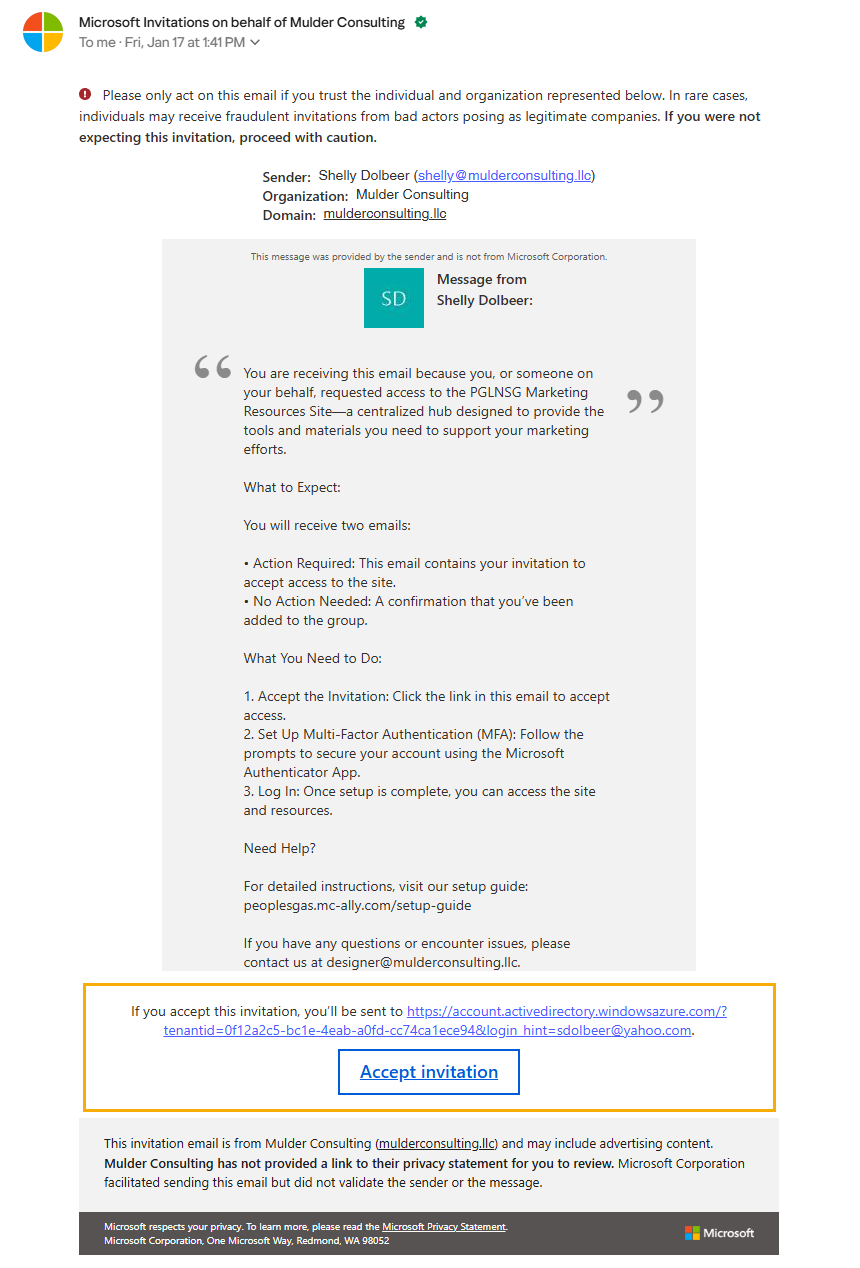
Check your email inbox for an invitation to join the PGLNSG Marketing Resources Site.
- Sender Name: Microsoft Invitations on Behalf of Mulder Consulting
- Subject: Stephanie Benner (or Shelly Dolbeer) invited you to access applications within their organization

Open the email and click the “Accept Invitation” button/link.
- This will redirect you to a Microsoft login page.
Step 2: Sign In or Create a Microsoft Account
If you already have a Microsoft account:
- Sign in with your existing email address and password.
- If prompted, verify your account details.
If you do not have a Microsoft account:
- Follow the prompts to create one using the email address where you received the invitation.
- Complete the account setup process.
Step 3: Set Up Multi-Factor Authentication (MFA)
Download the Microsoft Authenticator App from your device’s app store (available for iOS and Android).
Open the app and follow these steps:
- Select Add Account and choose Work or School Account.
- Scan the QR code displayed on the Microsoft setup page.
- Verify the setup by approving the notification sent to the app.
Step 4: Confirm Access
After completing the setup, you’ll be redirected to the PGLNSG Marketing Resources Site.
If the redirect doesn’t occur, use the following link to access the site:
Go to PGLNSG Marketing Resources Site
Once on the site, explore the tools and materials designed to support your marketing efforts.
Need Help?
If you encounter any issues during the setup process or have questions, refer to this guide or contact us at designer@mulderconsulting.llc.